
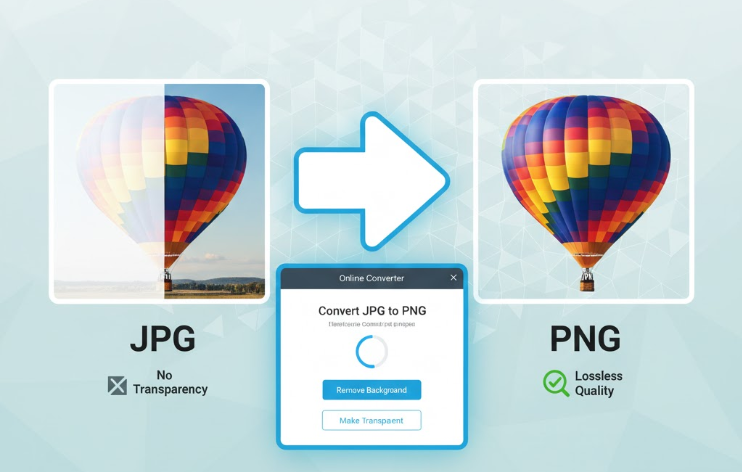
Are you tired of white backgrounds clinging to your images when you need a crisp, transparent look? Whether you're designing a website, creating social media graphics, or simply need a logo that blends seamlessly, knowing how to convert JPG to PNG for transparency is an essential skill.
JPG files are fantastic for photographs due to their small size, but they don't support transparency. PNG, on the other hand, is the go-to format for images that need a see-through background without sacrificing quality. But how do you make the switch without losing the visual fidelity you started with? Let's dive in!
Why Convert JPG to PNG?
The primary reason to convert a JPG to a PNG is to enable transparency. Imagine your brand logo. If it's a JPG, it will always appear with a solid white or colored background. But if it's a PNG with a transparent background, you can place it over any color, pattern, or image, and it will blend in perfectly.
Other benefits include:
Lossless Quality: PNG is a lossless format, meaning it retains all original image data, ensuring your image looks exactly as intended.
Sharp Edges: Ideal for graphics, icons, and text-heavy images where crisp lines are crucial.
Step-by-Step: Converting JPG to PNG for Transparency
Achieving a transparent PNG from a JPG often involves a simple conversion combined with removing the existing background. Here’s how you can do it easily:
1. Choose the Right Tool
While complex photo editing software can do the trick, the easiest and fastest way is often through a dedicated online converter. Look for tools that offer a user-friendly interface and background removal capabilities.
Our Recommendation: For a hassle-free experience, try our Free Online Image Converter here. It's designed to make these conversions quick and easy.
2. Upload Your JPG Image
Start by uploading the JPG image you want to convert. Most online tools allow you to simply drag and drop your file or select it from your computer.
3. Select PNG as the Output Format
Once your JPG is uploaded, choose PNG as your desired output format. This tells the tool to convert the file type to one that supports transparency.
4. Remove the Background (The Key Step for Transparency)
This is where the magic happens! If your JPG has a solid background you want to remove, look for an option like "Remove Background" or "Make Transparent." Many advanced online tools now use AI to automatically detect and remove backgrounds with impressive accuracy.
Pro Tip: If your tool doesn't have an automatic background remover, you might need to use a separate background removal tool first and then convert the resulting image to PNG if it's not already in that format.
5. Review and Download Your Transparent PNG
After the conversion and background removal process is complete, preview your new PNG image. Check to ensure the transparency is exactly as you wanted and that there's no noticeable loss in quality around the edges. Once you're happy, download your brand-new transparent PNG file!
Will There Be Quality Loss?
This is a common concern, and thankfully, with PNG, the answer is generally no. PNG is a lossless format, meaning when you convert a JPG to PNG, the conversion itself aims to preserve all visual data.
However, it's important to note:
Original JPG Quality: If your initial JPG file was very low quality or heavily compressed, converting it to PNG won't magically make it high quality. The PNG will retain the quality of the source JPG.
Background Removal Quality: The precision of the background removal process can affect perceived quality around the edges. Modern AI tools are very good, but for highly intricate images, manual touch-ups might be needed in more advanced editors.
Ready to Make Your Images Pop?
Converting JPG to PNG for transparency is a powerful way to enhance your visuals, making them more versatile and professional. With the right online tools, you can achieve this quickly and without compromising the quality of your images.
Start transforming your JPGs into stunning, transparent PNGs today and give your designs the flexibility they deserve!