A favicon is the tiny branding icon that gives your website a professional look in browser tabs, bookmarks, and mobile home screens. If you already have a fantastic logo or graphic in JPG or PNG format, you're halfway there! You don't need complex software or coding skills to turn that image into a full set of usable favicons.
This quick guide will show you the simple, three-step process to generate a favicon package using any standard JPG or PNG image, ensuring quality and readiness for all devices.
Step 1: Prepare Your Source Image (The 512x512 Rule)
The key to a high-quality favicon package is starting with a good source image.
Format: Your source image must be a JPG or PNG.
Dimensions: We highly recommend starting with an image that is square and at least 512x512 pixels (or larger, like 1024x1024).
Why 512x512?
While a favicon might ultimately be as small as 16x16 pixels, modern devices (especially Apple and Android) require larger icons for high-resolution displays and home screen shortcuts. Starting with a large, square source image ensures that when the online generator scales it down for different sizes, the result remains crisp and clear, avoiding pixelation.
If your image isn't square, you can easily crop your image using our online tool to make it a perfect square before proceeding.
Step 2: Use the Online Favicon Generator
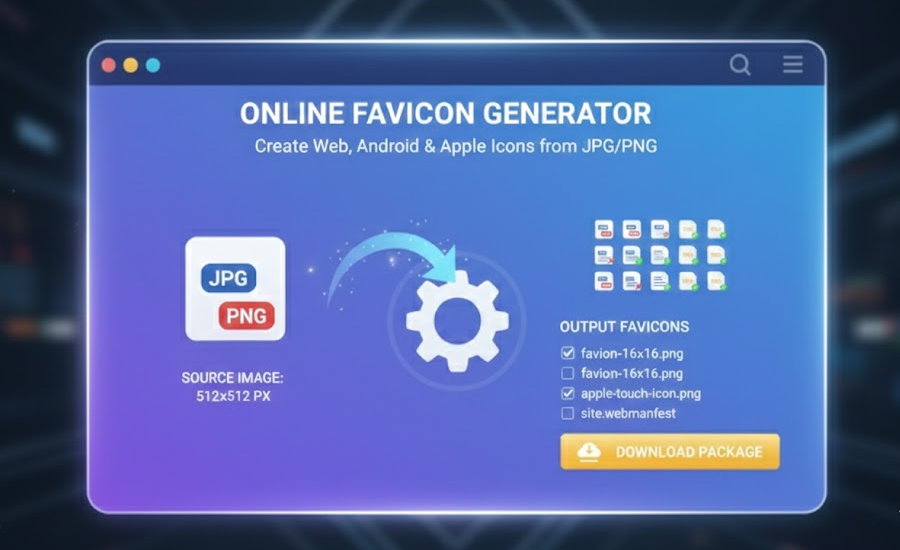
Once your source image is ready, you can convert it using our dedicated online tool. This method is the easiest way to generate the dozens of necessary sizes and files automatically.
Go to the Generator: Navigate to our Online Favicon Generator.
Upload: Drag and drop or click to upload your prepared 512x512 JPG or PNG file.
Instant Processing: The tool instantly begins creating the complete icon set in the background, including all required PNG sizes, the Apple Touch Icon, and the necessary
site.webmanifestfile.
Privacy Check: Your file is processed right here in your browser! There is no file upload to our server, keeping your original branding assets secure and private.
Step 3: Download and Deploy the Favicon Package
After the tool finishes processing (usually in less than a second), you are ready to deploy!
1. Download the Package
Click the "Download Favicon Package" button. You will receive a single ZIP file containing:
favicon-16x16.pngfavicon-32x32.pngapple-touch-icon.png(and other sizes)The essential
site.webmanifestfileAll other device-specific icons.
2. Copy the HTML Code
Below the download button, the generator provides all the necessary HTML code (link tags and meta tags). Copy this block of code.
3. Upload and Paste
Upload: Extract the ZIP file and upload all the contained icon files and the
site.webmanifestfile to the root directory (the main folder) of your website.Paste: Paste the copied HTML code into the
<head>section of your website’s HTML template.
That’s all there is to it! By starting with a quality 512x512 source image and using the right online tool, you have quickly created a comprehensive favicon set that will look perfect on every device, from desktop browsers to mobile home screens.